
LINUX
Install through the package manager on your Linux distro:
Arch/CachyOS/Manjaro
sudo pacman -S kew
- kew is on Arch Linux’s official repositories, but there’s also an AUR package that tracks the latest commit called kew-git.
Debian/Ubuntu/Mint/Rasbian/Kali/Parrot/PureOS
sudo apt install kew
NixOS
nix-env -iA nixos.kew
Fedora
sudo dnf copr enable fed500/kew
sudo dnf install kew
Alpine
sudo apk add kew
openSUSE
sudo zypper install kew
Or follow the manual installation guide.
Special cases:
- NixOS has an official package but also a Nix Flake that is tied to the latest commit.
- On Artix it’s available in the artist repository.
- A flatpak is available on the GitHub release page.
MACOS
Available through Homebrew.
brew install kew
FREEBSD
pkg install multimedia/kew
NETBSD
pkgin install audio/kew
WINDOWS
In windows terminal run:
winget install kew --location "C:\Program Files\kew"
Then add that folder to PATH:
[Environment]::SetEnvironmentVariable("Path",
    [Environment]::GetEnvironmentVariable("Path", "User") + ";C:\Program Files\kew", "User")
You can also run the Windows installer (https://github.com/ravachol/kew/releases/latest), from the latest release.
ANDROID
Available through Termux.
pkg install kew
termux-setup-storage
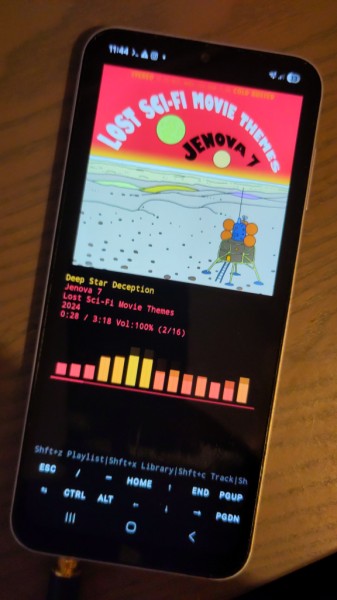
Full color covers in Android
To get full color covers (sixels) working in android you can install the build of termux found at the bottom here: https://github.com/termux/termux-app/pull/2973
Direct link: https://github.com/termux/termux-app/actions/runs/34651962568
For instance grab termux-app_v0.118.0+d8d6b02-apt-android-7-github-debug_universal and install it. You probably want to uninstall your current termux first.
Then follow these steps:
Run kew at least once.
Edit your /data/data/com.termux/files/home/.config/kew/kewrc file
nano /data/data/com.termux/files/home/.config/kew/kewrcChange coverstyle to sixels:
coverStyle=sixelsSave and exit. Sixels in kew should now be enabled on your Android device.